OpenVAS Vulnerability Scanner on Ubuntu 24.04: Docker Deployment with HTTPS
How to run OpenVAS (GVM) in Docker with HTTPS on Ubuntu 24.04: consolidating the working steps where Greenbone's own documentation is partially outdated.
Why this matters
Proactive vulnerability management is a foundational part of reducing cyber risk. Deploying OpenVAS in a secure, reproducible way helps organizations identify and remediate weaknesses before they are exploited, improving the resilience of production systems.
Overview
In this guide, I use the official Greenbone container documentation and apply several practical adjustments to enable HTTPS for the OpenVAS web interface.
While Greenbone provides guidance for SSL/TLS configuration, the current workflow documentation is partially outdated and does not work as-is. This article consolidates the working steps, highlights the required changes, and documents the troubleshooting needed to successfully deploy OpenVAS (GVM) with HTTPS using Docker on Ubuntu 24.04.
Prerequisites
- Ubuntu 24.04
- Docker and Docker Compose
- sudo privileges
Step 1: Install Docker
If Docker is not already installed, follow the official Greenbone instructions and verify Docker is running before continuing.
Step 2: Create an SSL certificate
sudo openssl req -x509 -newkey rsa:4096 \
  -keyout serverkey.pem \
  -out servercert.pem \
  -nodes -days 397
Step 3: Set correct ownership
sudo chown 1001:1001 *.pem
Step 4: Store the certificate securely
sudo mkdir $HOME/.ssl
sudo mv serverkey.pem servercert.pem $HOME/.ssl
ls -l $HOME/.ssl
Step 5: Create the working directory
export DOWNLOAD_DIR=$HOME/greenbone-community-container
mkdir -p $DOWNLOAD_DIR
cd $DOWNLOAD_DIR
Step 6: Download the modified Docker Compose file
wget https://raw.githubusercontent.com/jhurta05/openvas-docker-https/refs/heads/main/docker-compose.yml
Step 7: Update certificate paths
Edit docker-compose.yml and ensure lines 241–245 point to the correct certificate paths.
sudo nano docker-compose.yml
Step 8: Ensure UID/GID 1001 exists
cat /etc/passwd | grep 1001
Expected format:
ubuntu:x:1001:1001:Ubuntu:/home/ubuntu:/bin/bash
Step 9: Pull Docker images
sudo docker compose pull
Step 10: Start OpenVAS
sudo docker compose up
Step 11: Access the web interface
Access the web interface at https://IP_ADDRESS/
Default credentials:
Username: admin
Password: admin
Conclusion
Deploying OpenVAS with Docker and HTTPS provides a secure and repeatable way to integrate vulnerability scanning into modern environments. This approach simplifies maintenance while helping teams continuously identify and reduce security risk.
Related posts
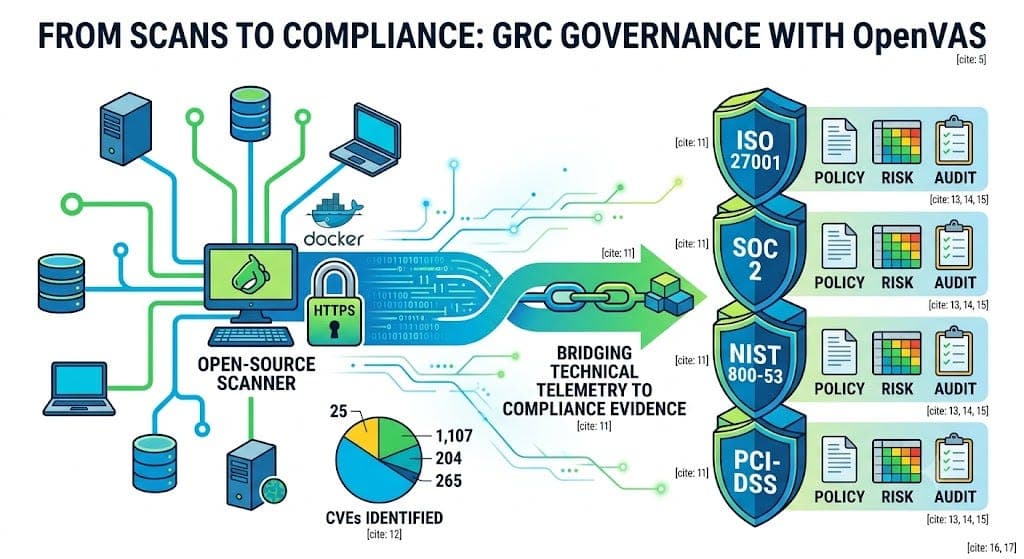
Bridging Technical Scanning to Enterprise Governance: How Open-Source Vulnerability Management Drives GRC Compliance
How open-source vulnerability scanning workflows transform raw system telemetry into auditable compliance evidence across ISO 27001, SOC 2, NIST SP 800-53, and PCI-DSS.

Running OpenVAS Is Easy. Managing Vulnerabilities Is Not.
Vulnerability scanning is widely adopted, yet many organizations struggle to reduce risk despite running regular scans. Without governance, prioritization, and ownership, vulnerability data becomes noise.
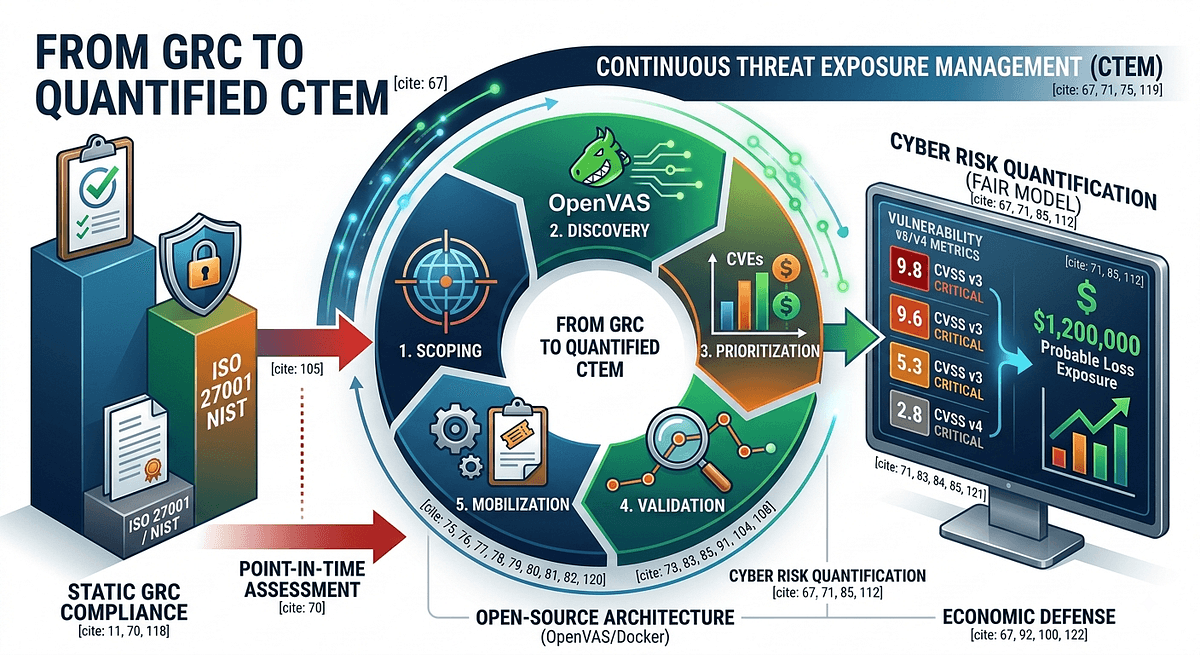
From GRC Compliance to Continuous Exposure Management: Quantifying Cyber Risk with Open-Source Architecture
Introducing a Continuous Threat Exposure Management (CTEM) framework integrated with FAIR cyber risk quantification: moving from static GRC compliance to continuous, board-level risk visibility.
Comments
No comments yet. Be the first.